The ELSA Way lives in a public GitHub repository, and every change to it goes through GitHub’s issue and pull request workflow. This page explains how to take part, from fixing a typo to proposing a new chapter.
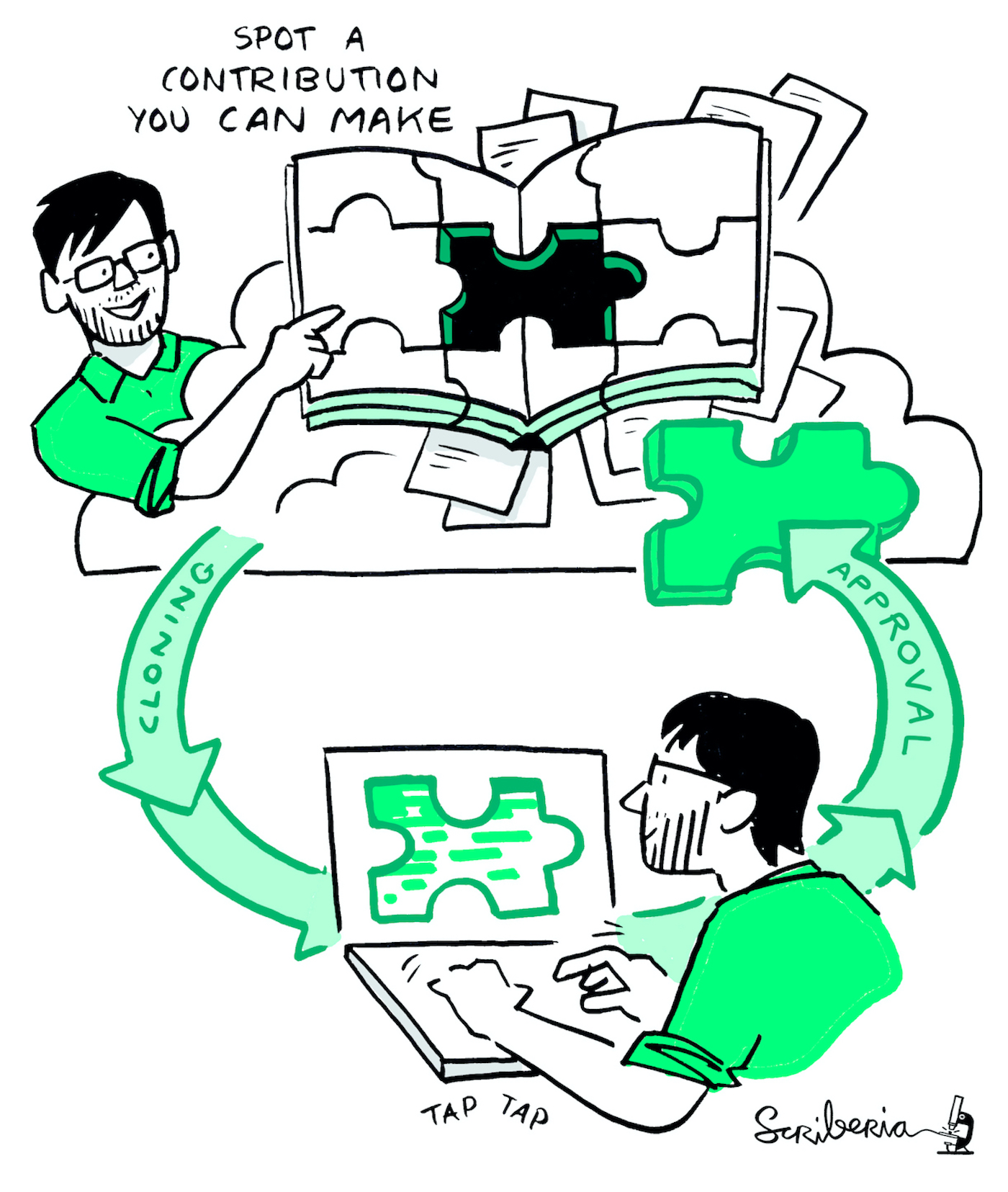
Figure 1:The Turing Way Community. This illustration is created by Scriberia with The Turing Way community, used under a CC-BY 4.0 licence. DOI: 10.5281/zenodo.3332807.
Types of contribution
| Type | What it involves | Effort |
|---|---|---|
| Typo or factual fix | Correcting an error in existing content | Small |
| Clarification | Rewriting an explanation that is hard to follow | Small |
| Gap | Pointing out missing content by opening an issue | Small |
| New tool | Adding a tool to the Toolbox (see Adding a tool) | Small to moderate |
| New example or case study | Adding a worked example to an existing chapter | Small to moderate |
| Chapter expansion | Adding substantial new content to an existing chapter | Moderate |
| New chapter | Proposing and writing a new chapter | Moderate to large |
| New section | Proposing a new major part of the book | Large; needs editorial board discussion |
How contributions work
Every contribution follows the same path: issue → pull request → review → merge. An issue is where an idea or problem is discussed and agreed; a pull request is the change itself. Anyone with a GitHub account can take part, whether or not you belong to the ELSA AI Lab, and you do not need permission to start.
1. Open an issue
Open an issue and choose the form that fits:
| Form | Use it for |
|---|---|
| Report an error | Typos, broken links, factual errors, outdated information |
| Suggest content | Clarifications, examples, gaps, chapter expansions, new chapters |
| Website or build problem | Something wrong with the site itself or with building the book |
| Question or other | Anything else |
Check first whether an open issue already covers your idea. If one does, add a comment there instead. If you have a commercial, professional or financial interest in the topic, declare it in the Conflicts of interest field of the Suggest content form (see Governance).
2. Wait for triage
An editor reads every new issue and labels it (see Labels). The issue is then:
accepted, with a review level that says how many editors must approve the change;
waiting for information, with a question for you; or
closed, with an explanation, for example because it duplicates another issue or falls outside the scope of The ELSA Way.
For a new chapter or section, the editorial board discusses the proposal before it is accepted (see Governance).
3. Pick up an accepted issue
Comment on the issue that you would like to work on it. An editor assigns it to you and labels it status: in progress, so nobody duplicates your work. Issues labelled good first issue are a good place to start, and help wanted marks issues the editors would especially like help with.
If you can no longer work on an issue, say so in a comment so someone else can pick it up.
4. Make the change
For a small change, use the website. Click the edit (pencil) button at the top of any page. GitHub opens the source file, creates your own copy of the repository (a fork) if you need one, and lets you propose the change as a pull request, all in the browser.
For a larger change, work on your computer:
Fork the repository and clone your fork. Members of the repository can create a branch in the main repository instead.
Create a branch with a short descriptive name, for example
fix-fairness-typooradd-sepsis-case-study.Write your content following the Style guide.
Preview the book locally with
make serve(see the README for setup).Commit and push to your fork or branch.
5. Open a pull request
Open a pull request against the main branch. The pull request form asks you to:
write
Closes #<issue number>, so the issue closes automatically when your change is merged;describe what you changed; and
confirm the checklist on style, sources and conflicts of interest.
Small fixes such as typos and broken links do not need an issue: tick This is a small fix instead.
Two automatic checks run on every pull request. Build book builds the whole book, and Linked issue checks that you linked an issue or marked the change as a small fix. If a check fails, click Details to see why. On your first contribution, an editor must approve the checks before they run; GitHub requires this for all public repositories.
6. Review and merge
Editors review your pull request according to its review level:
| Label | Change | Approval needed |
|---|---|---|
review: minor | Typo fixes, clarifications, small additions | One editor |
review: significant | New sections within existing chapters | Two editors |
review: major | New chapters, structural changes | Editorial board consensus |
Reviewers may suggest changes. Push new commits to the same branch to update your pull request; you do not need to open a new one. Once your pull request is approved, an editor merges it and the website updates within a few minutes.
Labels
| Label | Meaning |
|---|---|
status: needs triage | New; an editor has not looked at it yet |
status: needs info | Waiting for more information from the person who opened it |
status: accepted | Agreed to go ahead; anyone can pick it up |
status: in progress | Someone is assigned and working on it |
type: correction, type: content, type: tool, type: infrastructure, type: question | What kind of change it is |
review: minor, review: significant, review: major | How many editors must approve (see above) |
good first issue, help wanted | Good for newcomers; extra help welcome |
Content standards
Editors check every contribution against these criteria:
It is about responsible AI in healthcare.
Its claims are supported by a source or by stated experience.
A reader can act on it.
It follows the Style guide and the Code of conduct.
It does not reproduce copyrighted material without permission or a suitable licence.
Attribution
Everyone who contributes is listed on the Contributors page. Add your name there in the same pull request as your contribution.
Contributing without GitHub
If you cannot or prefer not to use GitHub, you can send your suggestion or text to the editorial board. Contact details will be added to this page once the editorial board is in place. When co-creation workshops are announced on this website, you can also contribute there.